
Term Setup Guide
Setup files you will need
- Students
- Faculty and Staff
- Admin Assignments
- Courses
- Course Sections
- Instructor Assignments
- Student Enrollments
- (Optional) Course Sections Survey Dates
Download the files here: All Term Setup Files
📋 Terms page layout (Updated July 2026): The Terms page has Active & Upcoming and Past tabs at the top. Active & Upcoming shows terms in progress or starting in the future; Past shows ended terms. Within a Term, Course Sections and Student Enrollments are organized as tabs.
File Formats
Columns denoted with (*) are required.
Students
This file contains essential information for setting up student accounts in ClassRanked, including their name, email, school ID, and default password.
Download the template here: students.csv
| Column | Type (Length) | Description |
|---|---|---|
| First Name* | Text (128) | Example: Andrew |
| Last Name* | Text (128) | Example: Miranda |
| Email* | Email (1024) |
The school email of the user. Used for logging in and receiving email notifications from ClassRanked at this address. Example: andy@university.edu |
| School ID* | Text (128) |
School issued ID used to identify the user. If the email is not found during login, this field is checked to authenticate the user. Example: P00012345 |
| Password | Text (must be ≥ 6 and < 32) |
The default password a user starts off with. They can change this via the "Forgot Password" flow at a later time. While technically optional if using alternative login method (Single Sign-On), we highly recommend setting one as an backup way of getting users to their accounts. |
| User Attributes… | Text (128) |
Additional columns in this file can be interpreted as User attributes. Each column title will represent a user attribute and the value in the column will be the value of that attribute. Column: Home Location Possible Values: Online, Los Angeles, New York, Orlando Column: Year Possible Values: Freshman, Sophomore, Junior, Senior |
Faculty and Staff
This file contains essential information for setting up instructor and admin accounts in ClassRanked, including their name, email, school ID, and default password.
Download the template here: faculty-and-staff.csv
| Column | Type (Length) | Description |
|---|---|---|
| First Name* | Text (128) | Example: Steven |
| Last Name* | Text (128) | Example: Johnson |
| Email* | Email (1024) |
The school email of the user. Used for logging in and receiving email notifications from ClassRanked at this address. Example: steven@university.edu |
| School ID* | Text (128) |
School issued ID used to identify the user. Used as fallback if email is not found during login. Example: P00012345 |
| Password | Text (must be ≥ 6 and < 32) |
The default password a user starts off with. They can change this via the "Forgot Password" flow at a later time. While technically optional if using alternative login method (Single Sign-On), we highly recommend setting one as an backup way of getting users to their accounts. |
| User Attributes… | Text (128) |
Additional columns in this file can be interpreted as User attributes. Each column title will represent a user attribute and the value in the column will be the value of that attribute. Column: Home Location Possible Values: Online, Los Angeles, New York, Orlando Column: Tenure Track Possible Values: Associate, Assistant, Tenured, Non-tenure |
Admin Assignments
This file maps administrators to specific academic units within your institution's reporting hierarchy, determining their level of access and permissions in the ClassRanked system.
Download the template here: admin-assignments.csv
| Column | Type (Length) | Description |
|---|---|---|
| Academic Unit* | Text |
The shorthand identifier of the academic unit this admin is assigned to. Must match the Example: CS |
| Email* |
The Example: andy@university.edu |
|
| Role* | Text |
Currently we only support the Gives admins access to view Reports for the Academic Unit they are assigned to as well as the children underneath that unit. |
Courses
This file contains essential information for setting up courses in ClassRanked, including their title, abbreviation, associate parent academic unit, and any custom course attributes.
Download the template here: courses.csv
| Column | Type (Length) | Description |
|---|---|---|
| Title* | Text (256) |
The name of this course. Example: Introduction to Computer Science |
| Abbreviation* | Text (128) |
The course prefix or shorthand code used to identify this course. Example: CS 101 |
| Parent Academic Unit* | Text |
The abbreviation of the academic unit this course belongs to. Example: CS |
| Course Attributes… | Text (128) |
Additional columns in this file can be interpreted as Course attributes. Each column title will represent a course attribute and the value in the column will be the value of that attribute. All Sections of this course will inherit this attribute. Examples: Column: Course Type Possible Values: Online, In-Person, Hybrid Column: Campus Possible Values: Main, Santa Cruz, San Jose, Downtown |
Course Sections
This file contains essential information for course sections in ClassRanked, including section identifiers, affiliated course, term dates, and scheduling details to properly set up course instances.
Download the template here: course-sections.csv
| Property | Type (length) | Description |
|---|---|---|
| Title* | Text (256) | Title of the course. |
| Course ID* | Text |
The abbreviation of the course this section is an instance of. Example: CS 101 |
| Section ID* | Text (128) |
The specific Section that the instructor teaches. Example: CS 101-01 |
| Term | Text (128) |
The term this Section is part of. Must match the name of the term in ClassRanked. Only applicable if you are trying to upload multiple terms worth of data together. Example: 2025 Spring |
| Start Date* | Date (time optional) |
The day this specific course section starts. If unspecified, the default start time will be at 12:00 AM of this date. Example: 01/16/2025 |
| End Date* | Date (time optional) |
The day this specific course section ends. If unspecified, the default start time will be at 11:59 PM. Example: 05/03/2025 |
| Course Attributes… | Text (128) |
Additional columns in this file can be interpreted as Course attributes. Each column title will represent a course attribute and the value in the column will be the value of that attribute. Examples: Column: Course Type Possible Values: Online, In-Person, Hybrid Column: Campus Possible Values: Main, Santa Cruz, San Jose, Downtown |
Instructor Assignments
This file specifies which instructors are assigned to teach which course sections, by mapping their emails to the Section ID (referred to here as Academic Unit)
Download the template here: instructor-assignments.csv
| Property | Type (length) | Description |
|---|---|---|
| Academic Unit* | Text |
The Example: CS 101-01 |
| Term | Text (128) |
The term the instructor is assigned to this course section. Only needed if you are trying to upload multiple terms worth of data together. Example: 2025 Spring |
| Email* |
The Example: faryal@university.edu |
|
| Role* | Text (128) | Supported values: Primary Instructor, Additional Instructor, TA, Teaching Staff, Observer. (Expanded March 2026.) See Article 36 for details on how each role affects visibility and survey evaluation. |
Student Enrollments
This file specifies which students are enrolled in which course sections, by mapping their emails to the Section ID (referred to here as Academic Unit)
Download the template here: student-enrollments.csv
| Property | Type (length) | Description |
|---|---|---|
| Academic Unit* | Text |
The Example: CS 101-01 |
| Term | Text (128) |
The term the student is enrolled to this course section. Only applicable if you are trying to upload multiple terms worth of data together. Example: 2025 Spring |
| Email* |
The Example: andrew@university.edu |
(Optional) Course Sections Survey Dates
This file allows you to set custom survey start, end, and result release dates for each course section - optional if using native course syncing tools in ClassRanked.
Download the template here: course-section-survey-dates.csv
| Property | Type (length) | Description |
|---|---|---|
| Section ID* | Text |
Example: CS 101-01 |
| Survey Start Date* | Date (time optional) |
The day the survey for this course section starts. If unspecified, the default start time will be at 12:00 AM of this date. Example: 04/28/2025 |
| Survey End Date* | Date (time optional) |
The day the survey for this course section ends. If unspecified, the default start time will be at 11:59 PM of this date. Example: 05/03/2025 |
| Admin Release Date | Date (time optional) |
The day this specific course section releases its results to admins. If unspecified, the default release time will be at 12:00 AM of this date, unless otherwise specified. Example: 05/04/2025 |
| Instructor Release Date | Date (time optional) |
The day this specific course section releases its results to instructors. If unspecified, the default release time will be at 12:00 AM of this date, unless otherwise specified. Example: 05/06/2025 |
Upload Steps
To ensure data accuracy, always download your upload receipts from the Activity Monitor at each step, immediately after uploading a file. Receipts help you quickly verify uploads and resolve potential issues.

🔍 Activity Monitor tip (Added February 2026): The Activity Monitor table includes a Task Type column that distinguishes which kind of CSV upload each row represents. Hovering on an entry shows a quick summary of upload details.
-
Upload Faculty and Staff.
- Go to: https://insights.classranked.com/admin/faculty_and_staff
-
From Faculty & Staff table: Click Add Faculty → Upload Faculty (.csv) and upload your Faculty and Staff file.
Upload Students
- Go to: https://insights.classranked.com/admin/students
-
From Students table: Click Add Student → Upload Students (.csv) and upload your Students file.
(Optional) Update Reporting Hierarchy
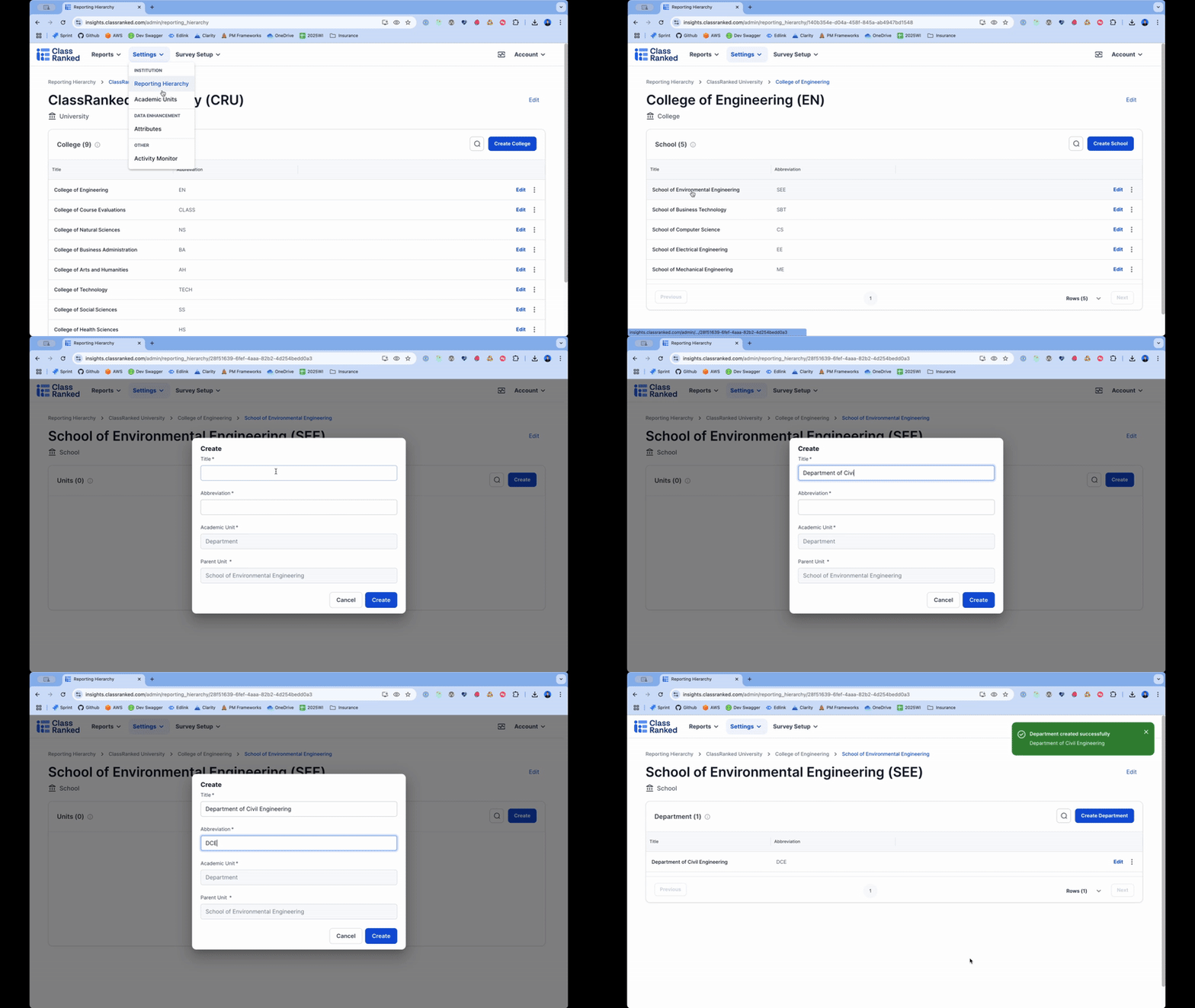
In the example, we navigate into the School of Environmental Engineering and create a new Department called, "Department of Civil Engineering" - Go to: https://insights.classranked.com/admin/reporting_hierarchy
-
By clicking through the table, navigate to the Academic Unit under which you would like to create a new Academic Unit.
Upload, Add, or Remove Admin Assignments
- Navigate back to: https://insights.classranked.com/admin/faculty_and_staff
- Option 1: Recommended for bulk adding admin assignments:
- From Faculty and Staff table: Click Add Faculty → Upload Faculty Roles (.csv) and upload your Admin Assignments file.
- Option 2: Recommended for one-off updates and removals:
-
From Faculty & Staff table: Double click on any faculty member's name to manage their admin role assignments.
Upload Courses
-
- Go to: https://insights.classranked.com/admin/course_catalog
-
From the Courses table: Click Add Courses → Upload Courses (.csv) and upload your Courses file
Create a Term
- Go to: https://insights.classranked.com/admin/terms
-
From the Terms table: Click Create Term
Upload the following files into your newly created term*:
- From Sections table: Click Add Course Sections → Upload Course Sections (.csv) and upload your Course Sections file.
- From Sections table: Click Add Course Sections → Upload Instructor Assignments (.csv) and upload your Instructor Assignments file.
- From the Student Enrollments table: Click Add Enrollments → Upload Enrollments (.csv) and upload your Student Enrollments file.
-
Setup Survey Project for this new Term.
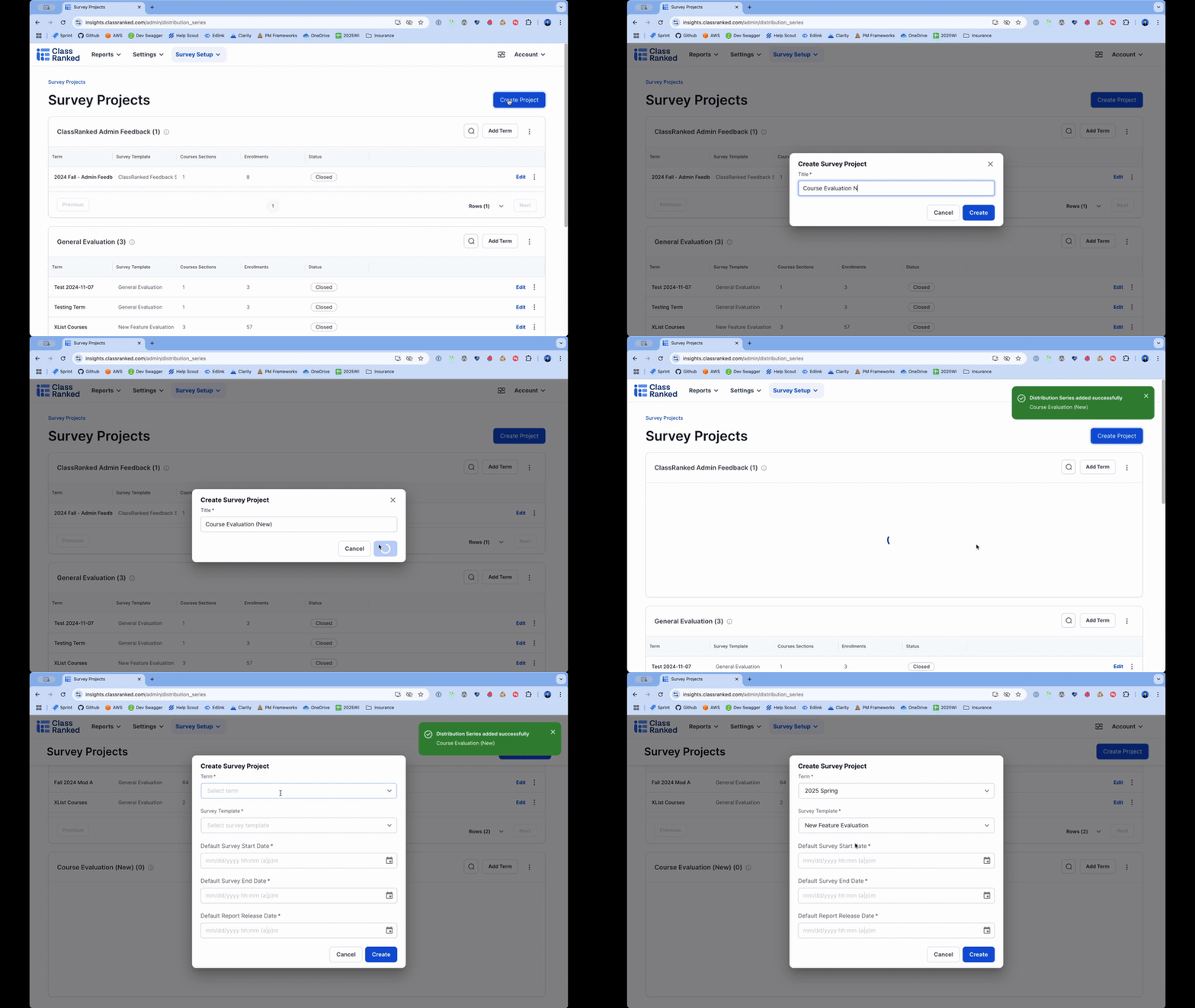
- Navigate to: https://insights.classranked.com/admin/distribution_series
- If you are creating a new Survey Project**:
- On the top right hand corner, Click Create Survey Project and provide your new Survey Project a name
- A new table should appear titled whatever you provided as the Survey Project name.
- Continue with the same steps below, for "If you are adding a term to an existing Survey Project"
- If you are adding a term to an existing Survey Project:
- From the Survey Project table you are interested in adding a new term to: Click Add Term
- Fill out the required fields to create a Survey Project.
- Term: The term you want to survey.
- Survey: The template you want to survey.
- Default Start Date: The start date of the Survey Project
- Default End Date: The end date of the Survey Project
- Default Report Release Date: The fallback date that admins and instructors will be able to view the results of a survey project—if a section-level one is not provided.
-
Publishing a Survey Project (March 2026): When you publish a survey project, a confirmation modal asks you to acknowledge that the survey template, course sections, instructor assignments, and student enrollments are all up to date. Optional Review links in the modal let you jump to each of those sections to verify before confirming.
Add or Upload Course Sections Survey Dates into Survey Project
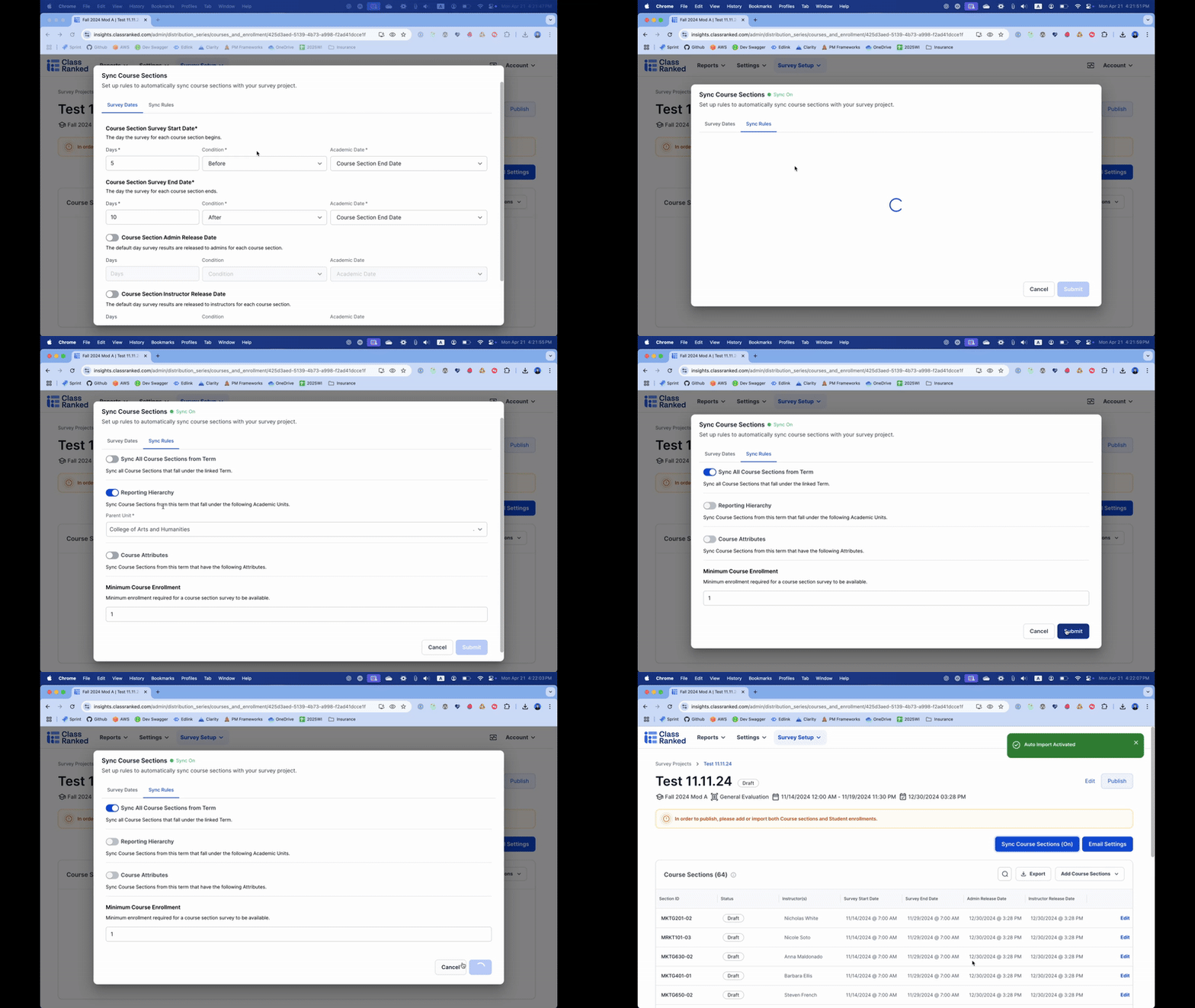
In the example, we set the survey dates to start 5 days before the end of the course section and end 10 days after. We sync all course sections from the Term. - Option 1 (recommended): Use Auto Import
- Click Sync Course Sections
- Set Survey Date rules - these will be applied to all Course Sections.
- Set Syncing rules - Only course sections that match the rules you set here will be brought into the survey project. This will update as new course sections are added in the term.
- Note (March 2026): Sync Course Sections cannot be disabled once a survey project is in the Live state. However, you can edit or disable Sync Course Sections settings while a project is live if you need to add or correct course sections.
- Option 2: Upload via .csv
- From Course Sections table: Click Add Course Sections → Upload Course Sections (.csv) and upload your Course Section Survey Dates file.
- The Course Sections provided must match Course Sections that exist in the term you are affiliated with.
- From Course Sections table: Click Add Course Sections → Upload Course Sections (.csv) and upload your Course Section Survey Dates file.
- Filter & Bulk Select (Added February 2026): When adding course sections to a Survey Project, you can filter and bulk-select sections, then add the matching set in one action — useful for large terms.
Adding a Course Section to a Survey Project from the Terms Page
As of April 2026, you can add a course section to an existing survey project directly from the Terms page. Open the course section's detail modal, go to the Survey Projects tab, and click Add to Survey Project. Survey dates pre-fill from the project's defaults. Projects the section is already in are disabled with a tooltip explaining why.
Footnotes
* Any of these uploads can also be done manually for one-off sections, instructor assignments, or enrollments not included in your CSV.
** Create a new survey project if you're:
- Evaluating something fundamentally different—like a new template with major question changes.
- Shifting your evaluation's purpose—capturing different insights or measuring new outcomes.
- Drawing a clear line between past data and new results. When your survey evolves drastically, a separate project ensures your reports stay clean and actionable.
Still need help? Contact support@classranked.com