
Choosing Which Course Sections Are Evaluated
This guide covers every way to control which course sections are in a Survey Project: automatic syncing rules, adding sections manually or by .csv, and removing sections.
Only the course sections in a Survey Project are surveyed. The course sections must already exist in the term (see the Term Setup Guide). There are four ways to add them:
| Method | Best for |
|---|---|
| Sync Course Sections (recommended) | Rule-based selection (consistent, institution wide launch rules that are applied to new sections automatically |
| Add Manually / Bulk Select | Picking specific sections, or filtering and selecting a few different survey window cohorts |
| Upload Course Sections (.csv) | A list of sections with their own survey dates, most granular |
| Add to Survey Project (Terms page) | Adding one section that was missed |
Option 1 (recommended): Sync Course Sections
⚠ Important: Sync settings can only be edited while the Survey Project is in Draft. Sync cannot be turned off once the project is Live.
- Open the Survey Project and go to its Course Sections table.
-
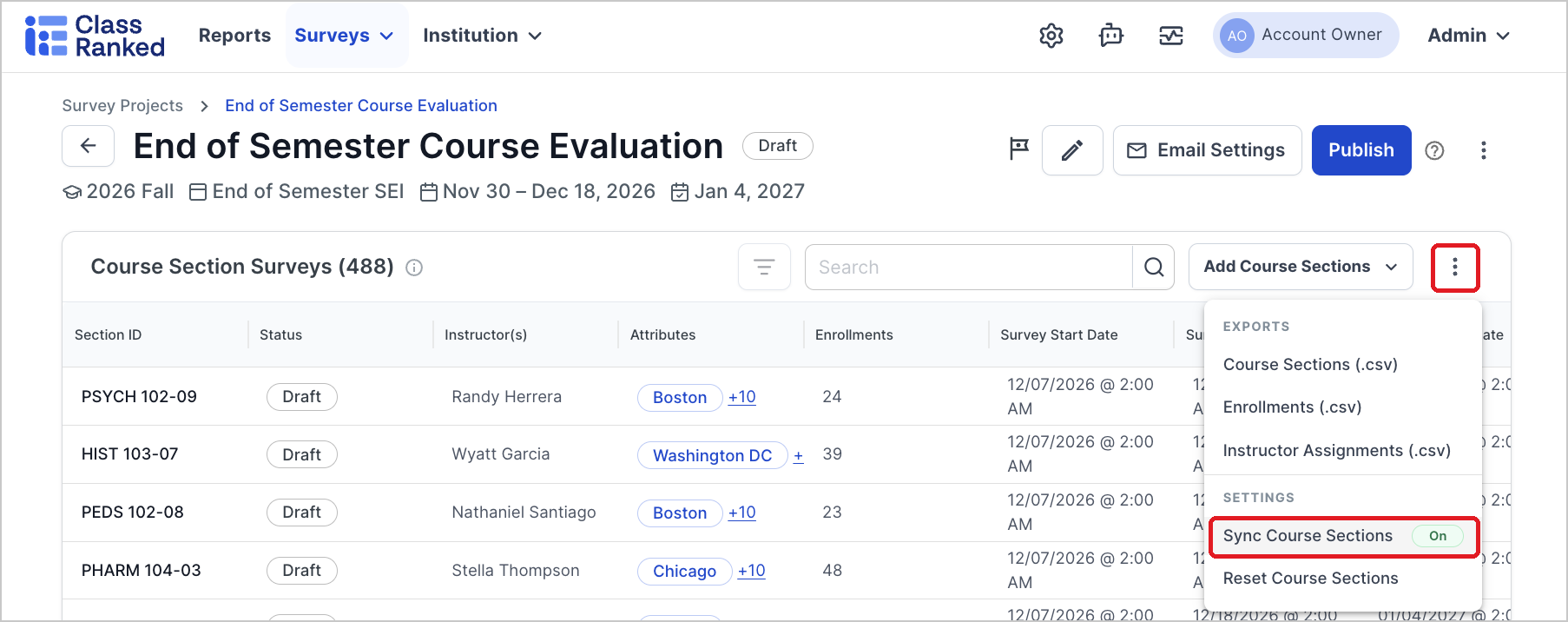
Click the three dots (⋮) → Sync Course Sections.
-
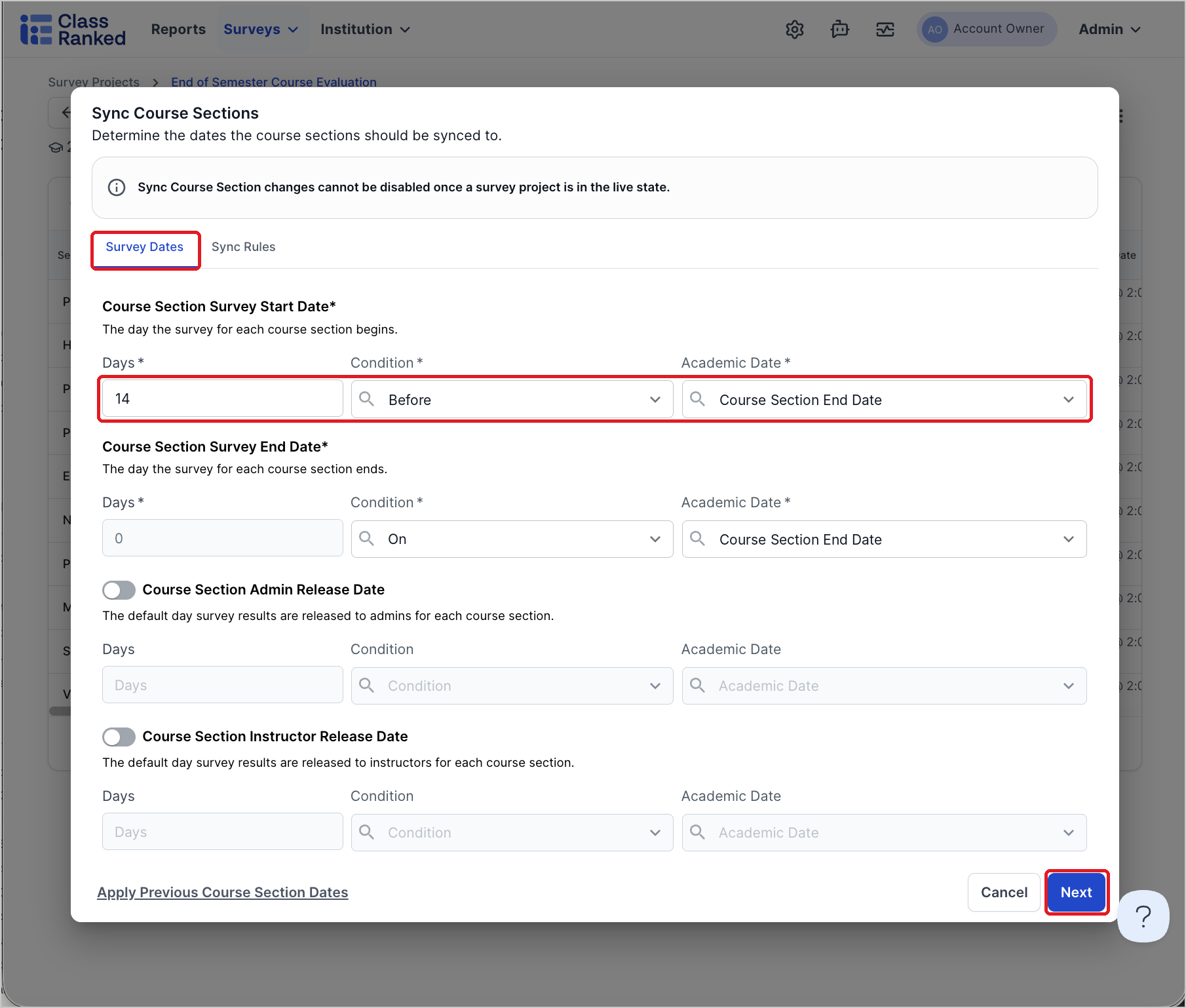
On the Survey Dates tab, set the rules that calculate each section's dates.
- For each date, choose a number of Days, a Condition (Before, After or On) and an Academic Date (Course Section Start/End Date or Term Start/End Date).
- For example: Survey Start Date = 14 days Before Course Section End Date.
- Course Section Survey Start Date and Course Section Survey End Date are required.
-
Course Section Admin Release Date and Course Section Instructor Release Date are optional; turn them on to set them by rule, otherwise the project's default release date applies.
- For each date, choose a number of Days, a Condition (Before, After or On) and an Academic Date (Course Section Start/End Date or Term Start/End Date).
-
On the Sync Rules tab, choose which sections come in (see the rules below).
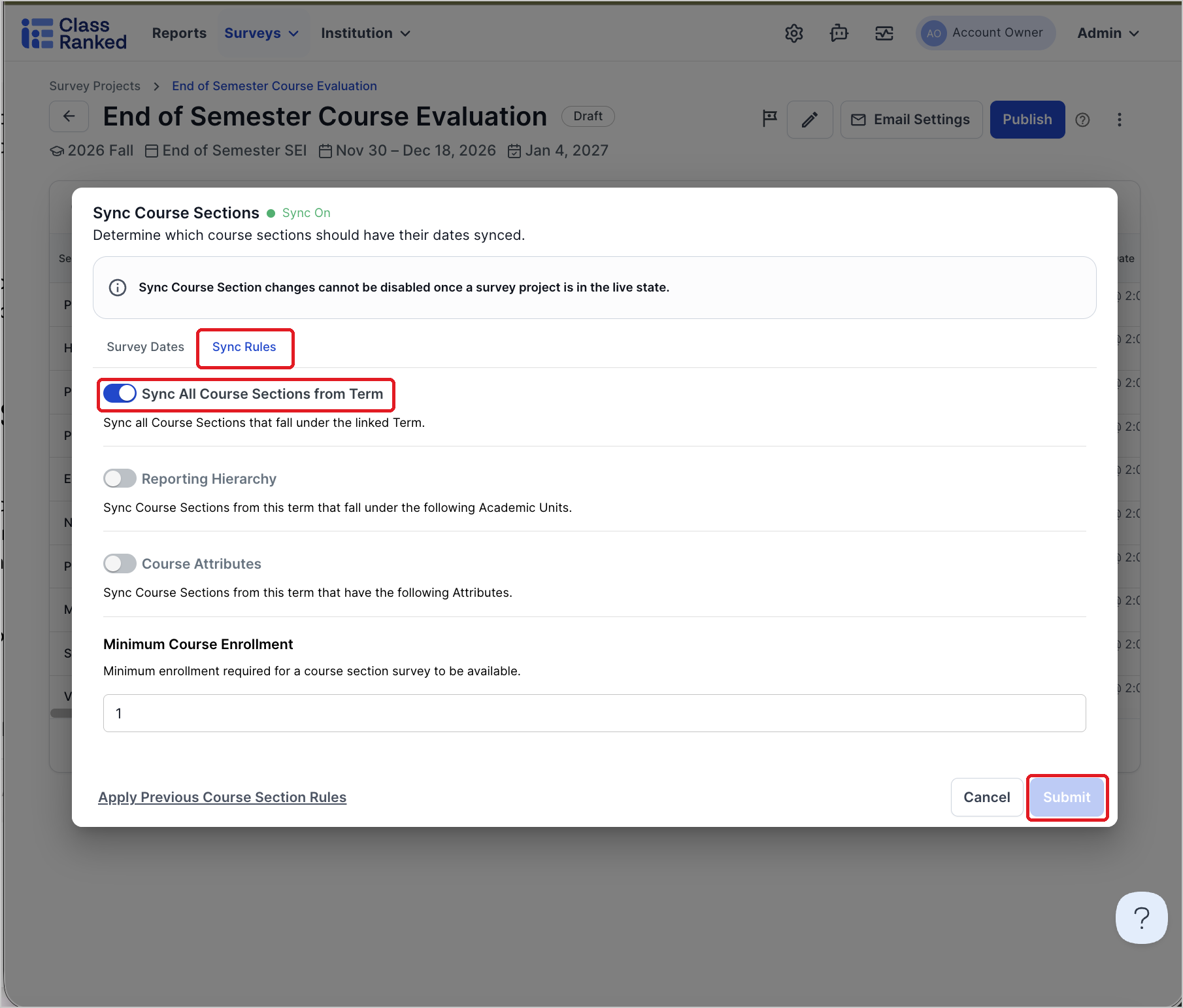
- Click Submit. Syncing runs in the background; you'll see "Course sections synced successfully" when it's done.
The sync rules are:
- Sync All Course Sections from Term – every section in the term. Turning this on disables the other filters.
- Reporting Hierarchy – only sections under the academic units you pick (including all units below them). Select an academic unit type first, then the units.
- Course Attributes – only sections that match attribute rules, for example Sync if Course Type Is Online, or Sync if Campus Is Not Main. A section must match every rule you add.
- Minimum Course Enrollment – the minimum number of enrolled students needed for a section's survey to be available (must be at least 1).
💡 Tip: Running the same setup as last term? Use Apply Previous Project Settings when creating the Survey Project to automatically apply Sync Rules!
How sync keeps the project up to date
- Draft project: every section that matches your rules is synced.
- Published or Live project: new or updated sections in the term are added automatically if they match your rules and their calculated survey start date is still in the future and within the project's dates. Sections that stop matching are removed.
- Closed project: nothing is added.
- Live sections only receive end-date updates from sync. Closed sections are not changed.
- If you delete a section from the project yourself, sync will not add it back. Adding it back manually reverses this.
If some sections could not be synced, you'll see "{N} course sections synced, {M} could not be synced." Check the Activity Monitor (upper right, next to Account) for the reason.
About Minimum Course Enrollment
Minimum enrollment does not stop a section from being synced.
A section below the minimum stays in the project with the warning "Minimum enrollment of {N} students is required to enable course section surveys," and students cannot submit until enrollment reaches the minimum.
Minimum enrollment can only be changed while the project is in Draft.
Option 2: Add sections manually or with Bulk Select
-
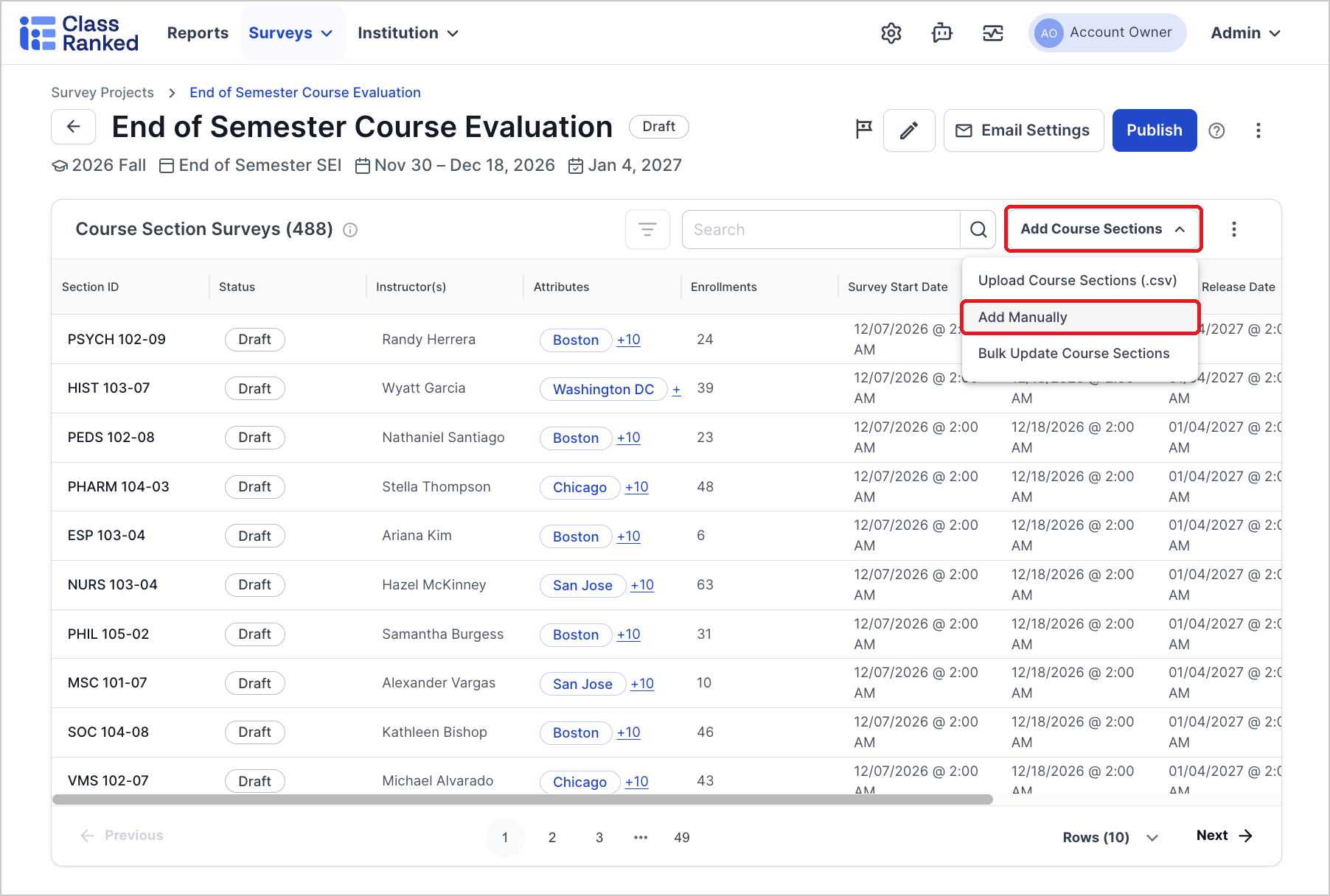
In the Survey Project, click Add Course Sections → Add Manually.
- Enter the Start Date, End Date and, optionally, the Admin Release Date and Instructor Release Date. These dates apply to all selected sections.

- Choose sections in Course Section(s) (only sections not already in the project are listed), or click Bulk Select to filter the term’s sections and select many at once.


- Save. Bulk additions run in the background.
Option 3: Upload a .csv
-
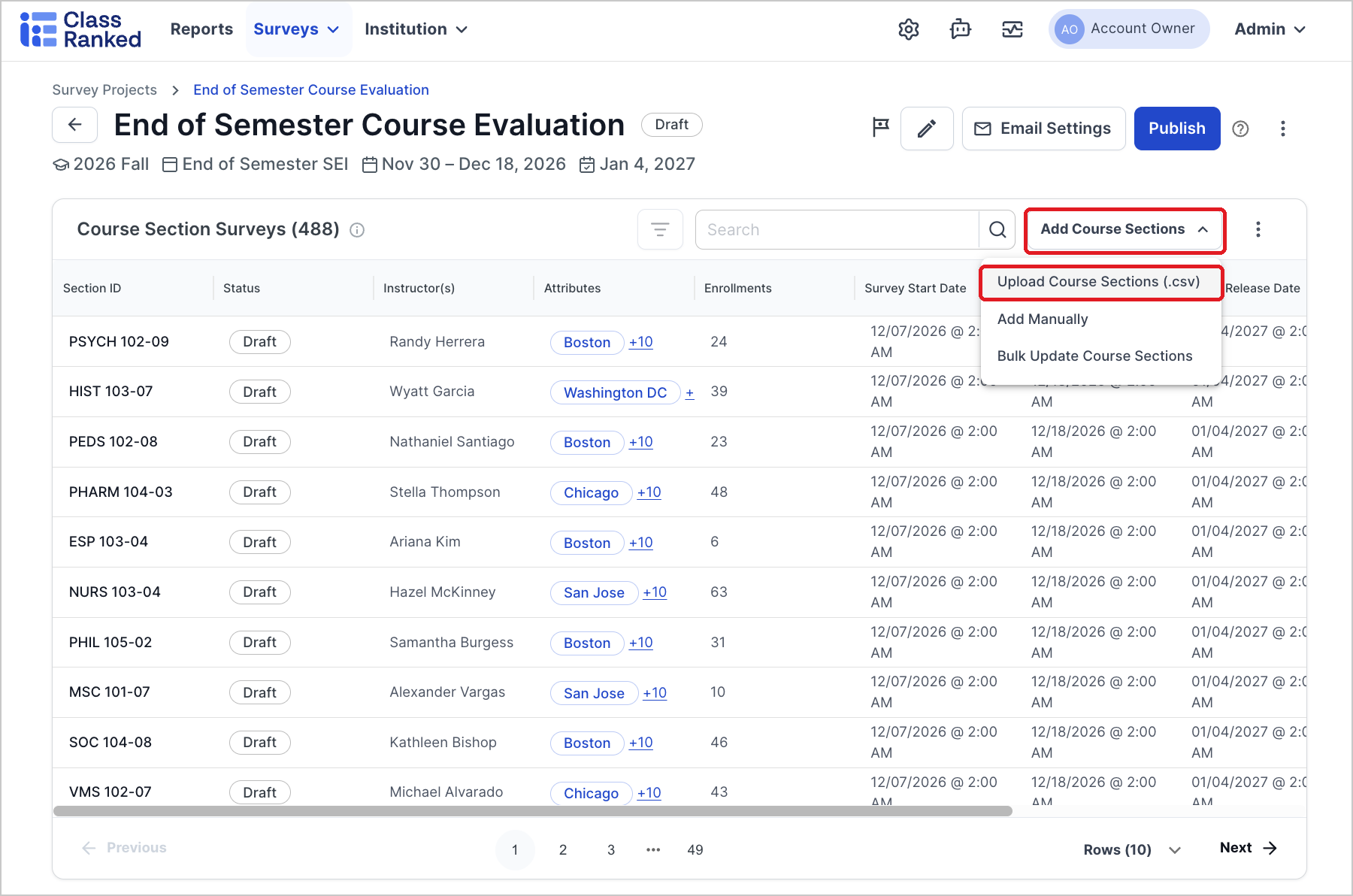
In the Survey Project, click Add Course Sections → Upload Course Sections (.csv).
-
Upload a file with these columns: Section ID (required; must match a course section that exists in the term), Survey Start Date, Survey End Date, Admin Release Date and Instructor Release Date (optional), and Opted Out (optional, Yes/No; only if opt-out is enabled on the project).
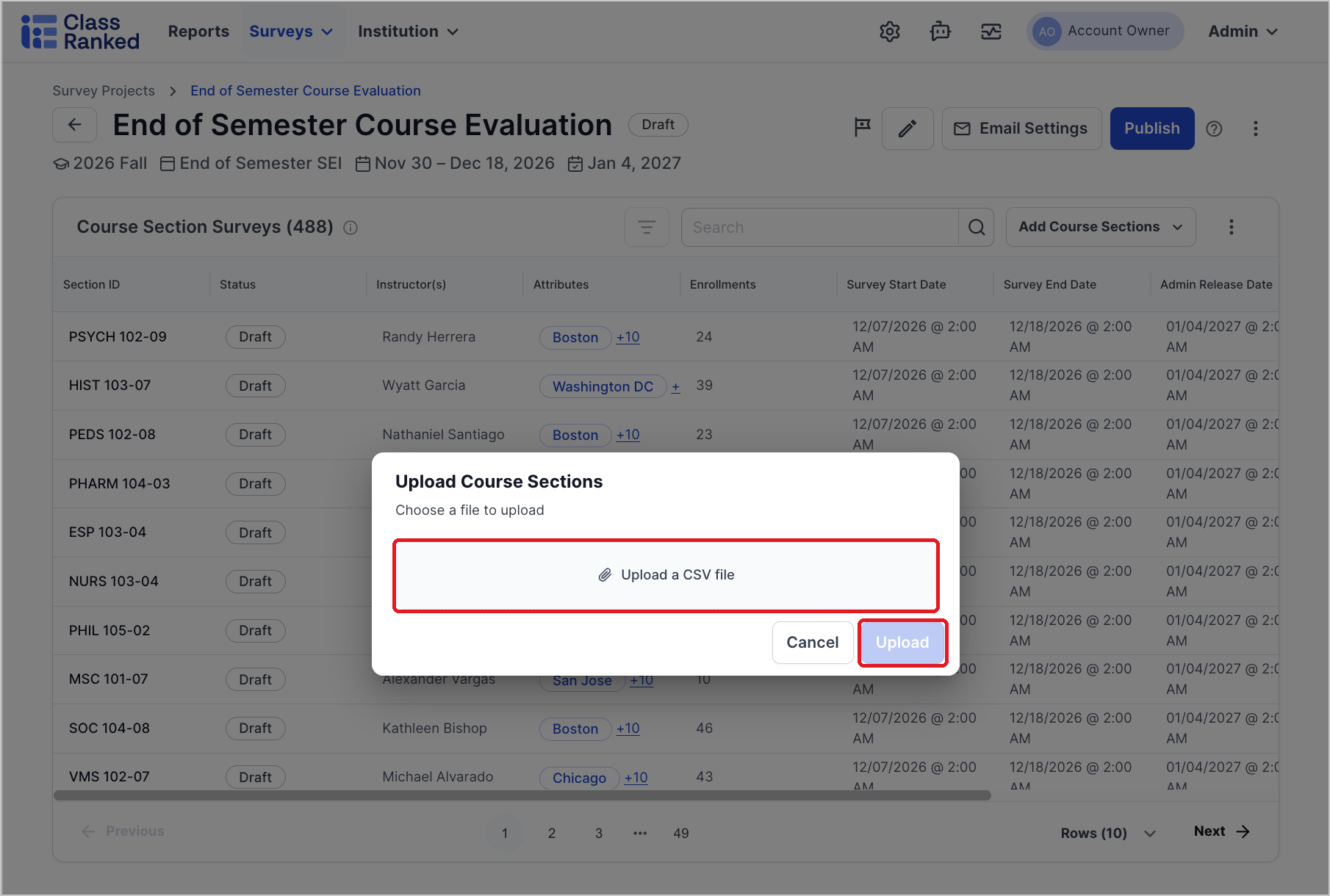
Dates use MM/DD/YYYY. The upload adds new sections and updates the dates of sections already in the project.
Option 4: Add one section from the Terms page
-
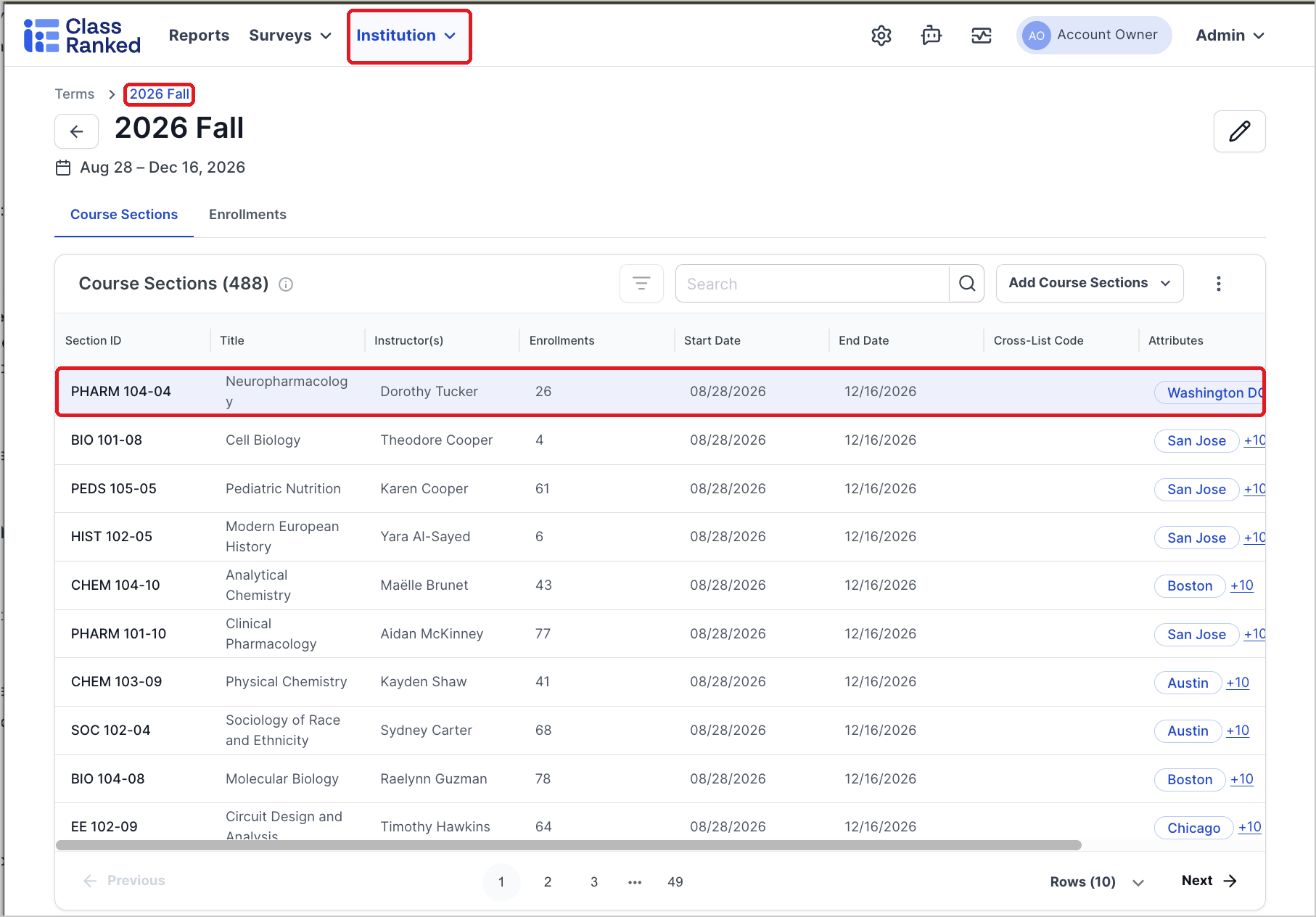
Go to Terms and open the term.
-
Open the course section's details and go to the Survey Projects tab.
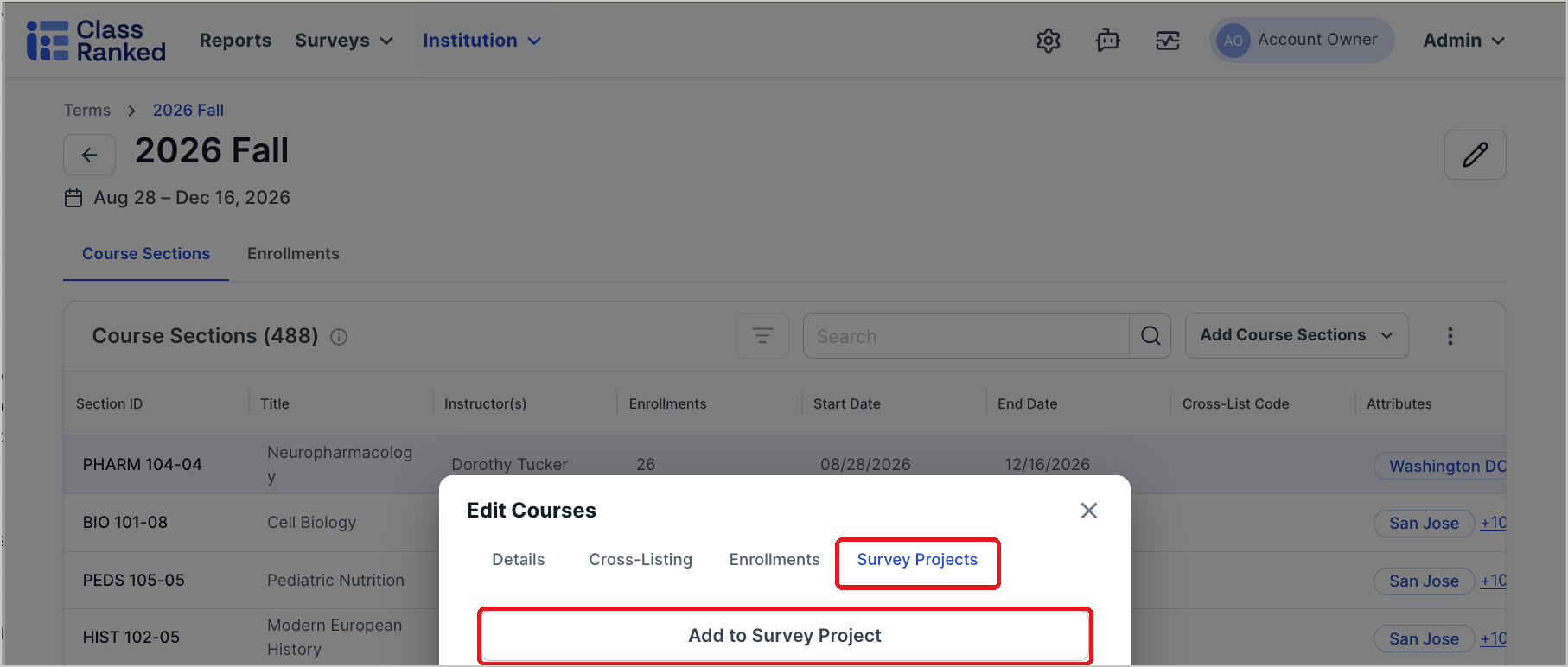
- Click Add to Survey Project and choose the project. Dates fill in from the project's defaults; adjust them if needed.
Projects the section is already in, and Closed projects, appear greyed out.
Removing sections
Remove one section
-
In the Survey Project, click the three dots (⋮) on the section's row → Delete.
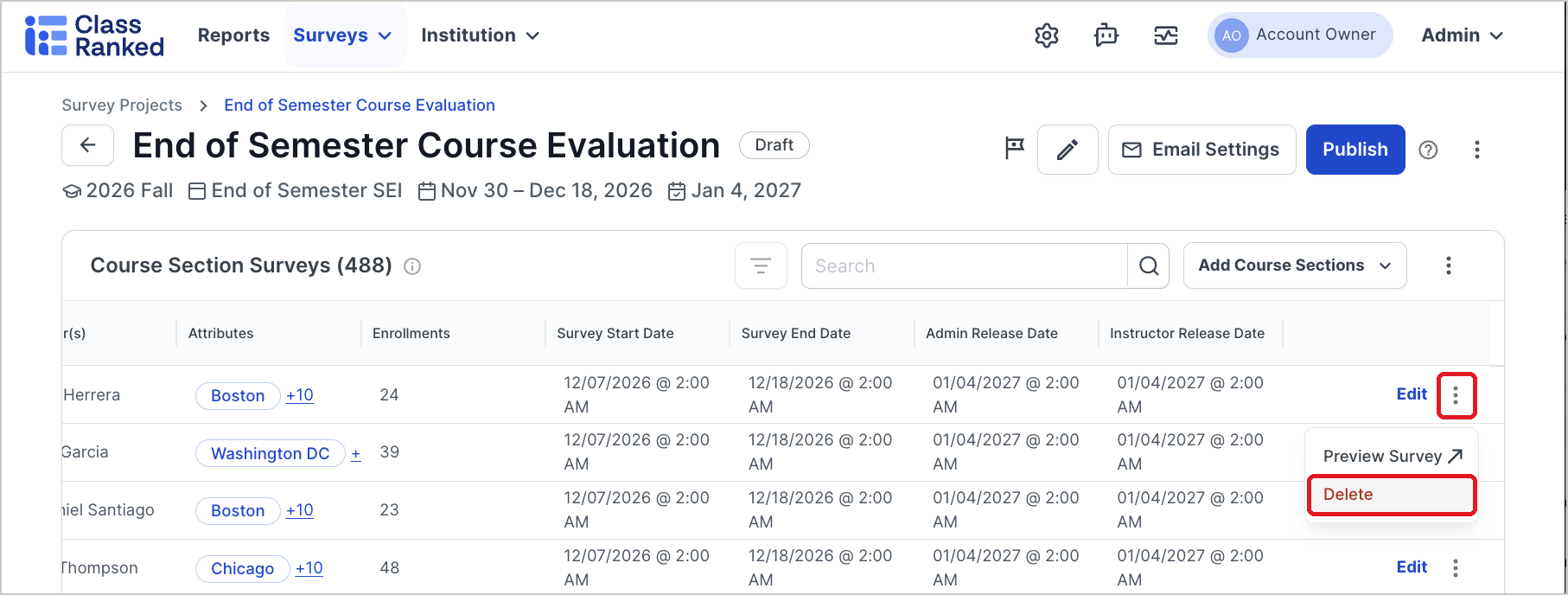
- Click Delete to confirm.
This removes the section's survey from the project, not the course section itself. You can add it back later.
⚠ Important: If the project is Live, deleting a section's survey permanently deletes any responses it has collected. Sections cannot be deleted from a Closed project.
Remove all Draft sections
While the project is in Draft, click ⋮ → Reset Course Sections to delete every Draft section from the project and start over. This cannot be undone and also turns off the project's sync rules.

Updating many sections at once
To change dates (or opt-out status) on sections already in the project, click Add Course Sections → Bulk Update Course Sections.

Fill in only the fields you want to change; blank fields keep each section's current value.

Select the sections with Bulk Select, then click Save.

Start dates of Live sections cannot be changed.
Why is a section still in Draft?
When you 'Publish' the Project, three tabs are created. Draft, Live and Upcoming, and Closed. A section in Draft will not be surveyed.
⚠ When you publish, any section that fails a check stays in Draft and shows a warning icon next to its Section ID. Hover over the icon to see the reason, and click it to highlight the field to fix.
| Warning | How to fix |
|---|---|
| The survey for this course section cannot have empty start or end timestamps. | Enter a start and end date. |
| The start (or end) time for this survey must be within the Survey Project Date Range… | Move the date inside the Survey Project's start and end dates. |
| The survey duration for this course section cannot be less than 1 day. | Make the survey window at least one day. |
| Set the admin (or instructor) release time for the Course Section survey to be on or before the Survey Project's release time. | Set the release date on or after the survey end date and on or before the project's release date. |
| Course Section must have at least one instructor, teaching assistant, or support staff assigned. | Assign an instructor to the section. |
| Course Section must have at least one student enrolled. | Enroll students in the section. |
In a Published or Live project, fixing the issue moves the section to Published automatically. See also Troubleshooting Survey Projects.