
2. Survey Template Crosswalk Guide
This feature is currently in beta
We are actively refining the historical import workflow and the Survey Template Crosswalk process. During this period, functionality, required fields, and formatting guidelines may evolve. Please follow the instructions in this document closely and reach out to the ClassRanked team with any questions or implementation needs.
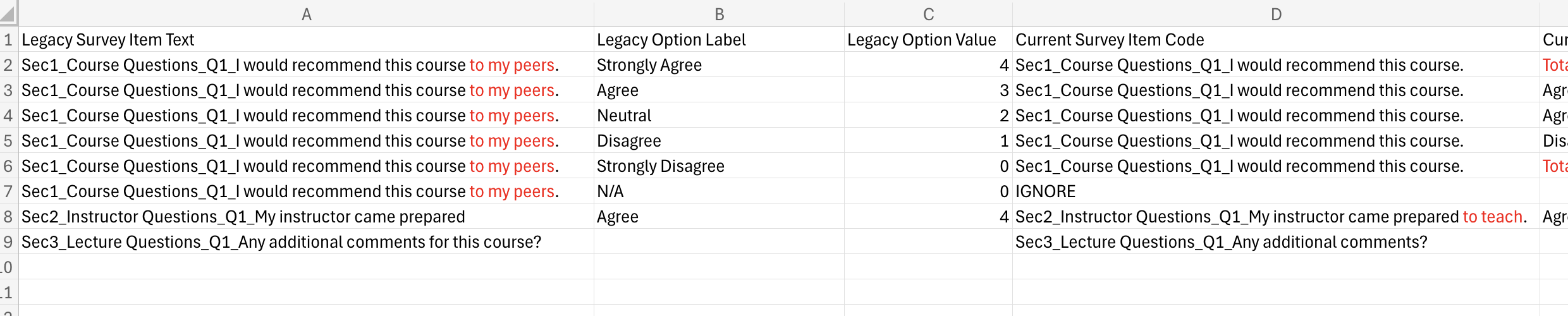
Institutions often have several versions of their course evaluation surveys across years. Survey item wording varies, scales change, sections are reorganized, and sometimes items are added or removed.
To import historical data cleanly into ClassRanked, for each import institutions are highly recommended to generate a Survey Template Crosswalk. This file tells ClassRanked exactly how legacy survey items map into the institution’s current survey template inside ClassRanked.
⚠️ Not doing so can lead to only partial mapping and incomplete historical data.
1. Purpose of the Crosswalk
The Crosswalk enables ClassRanked to:
- Match legacy survey items to your current ClassRanked template
- Normalize option labels and numeric values
- Handle scale changes (4-point → 5-point, etc.)
- Resolve renamed or reworded survey items
- Identify items that should be ignored
- Preserve longitudinal comparability across years
- Apply correct scoring weights
Historical data imports cannot proceed without a valid Crosswalk.
2. Required File Format
Accepted formats: CSV (.csv)
Encoding: utf-8
One row per legacy option for each legacy survey item.
Required Columns:
Legacy Survey Item Code
Legacy Option Label
Legacy Option Value
Current Survey Item Code
Current Option Label
Current Option Weight
No other columns are required. Additional columns (e.g., Notes) are allowed but ignored during import.
Column Definitions
Legacy Survey Item Code
- Exact text of the survey item from the historical export.
- Must match what appears in the wide-format import file.
- If using the ClassRanked format this will be Sec
#_Section Title_Q#_Survey Item Text
Legacy Option Label
- The option label as it appears in the historical data (e.g., Strongly Agree, Fair, N/A).
- Leave blank if:
- The survey item is a free response question
Legacy Option Value
- Numeric value from the legacy system (if applicable).
- Leave blank if:
- the system did not store numeric values.
- The survey item is a free response question.
Current Survey Item Code
- Code from the ClassRanked template (e.g., Sec2_Instructor Questions_Q1_I would recommend this instructor to my peers).
- Provided in the starter template file (see Section 4)
- Set this field as
IGNOREif you are ignoring this Survey Item Option
Current Option Label
- The official option label from the ClassRanked template (e.g., Strongly Agree).
- Leave this field blank if you are ignoring this Survey Item Option
Current Option Weight
- Numeric weight assigned to that option in ClassRanked (e.g., 4 for Strongly Agree).
- Defines scoring and reporting behavior.
- Leave this field blank if you are ignoring this Survey Item Option
3. ClassRanked-Provided Template Crosswalk Starter File
To simplify the process, ClassRanked provides a starter file containing all the fields in the Crosswalk but with Current Survey Item related fields filled out:
Current Survey Item Code
Current Option Label
Current Option Weight
This file is the authoritative list of survey items and option weights currently used in your ClassRanked environment.
You will match legacy items to the codes and options listed in this file.
You can find an example of the starter file here: Survey Template Crosswalk Example
You do not create or modify these rows; you use this file to know what to map legacy items into.
4. How to Use the Starter File
Review your historical survey export.
- Identify each survey item in your historical export.
- Locate the corresponding item in the starter file.
- Add one mapping row per legacy option.
- Use
IGNOREin the Current Survey Item Code column for options that should be ignored.- If the Option has been removed but you'd like to add the Option's value to a different Option's map it to that Option.
- See rows 4 and 7 in Survey Template Crosswalk Example
- Return the completed file to ClassRanked.
5. Minimum Requirements for Acceptance
A valid Crosswalk must:
- Include every survey item appearing in the historical file
- Include every option label used in historical data
- Map each legacy item to exactly one current survey item code
- Provide weights for rating-scale options
- Use
IGNOREfor items to exclude from import - Not introduce new survey items or modify current template text
6. How ClassRanked Uses the Crosswalk During Import
During the import process:
- ClassRanked reads the legacy wide-format response file.
- Each survey item is looked up in the Crosswalk.
- Each option label is mapped to the correct current option label and weight.
- Responses are transformed into long-format rows.
- Items marked IGNORE are skipped.
- All mapped responses are inserted into the reporting engine.
This ensures:
- Accurate scoring
- Consistent reporting across years
- Correct instructor analytics
- Valid longitudinal comparisons