
Set up Email Notifications
By Default, Email notifications are not active, please follow the instructions below to turn them on. Note: Update 10/2026, Custom messaging is mentioned in the video, but is not currently available.
ClassRanked provides a set of email templates that go out automatically during the course evaluation process. As an admin, you can control:
- When emails are sent
- Either on a recurring schedule (e.g., daily reminders)
- Or a set number of days before/after a key event (such as survey opening or closing)
- The message content (described below):
To set your email notifications:
- Navigate to the specific Term in a Survey Project that you would like to set emails for.
- Once you are in the Survey Project for a specific term, press the "Email Settings" button on the right hand side of the page.
- You will see 3 tabs, for the 3 user groups that can receive surveys: Students, Instructors, and Admins.
- Toggle on the emails for each group that you want to send and set the frequency/activation time and custom message.
⏱️ Per-student daily cap (Updated February 2026): A per-student daily cap is enforced on top of any reminder schedule you configure — students receive at most one ClassRanked email per day across all Survey Projects. The schedule and interval you set here still apply, but the daily cap takes precedence.
The following are the email notifications that can be activated.
Student - Reminder Email
Purpose: Notifies instructors that surveys are about to open for their students.
Automatic details included: Instructor's name, date the surveys open, school name.
Behavior: An email is sent on the first day the survey is live and once on the day the survey closes, regardless of frequency. If a student completes all active surveys, they will stop receiving emails.

Instructor Email Settings (Updated March 2026)
Opening, reminder, and closing emails for instructors are now grouped together in the Instructor tab for easier configuration. Frequency is set using dropdown-based schedule and interval selections instead of manual frequency inputs. (Updated March 2026 — Instructor Email tab grouping and dropdown-based frequency.)
Instructor - Survey Opening
Purpose: Notifies instructors that surveys are about to open for their students.
Automatic details included: Instructor's name, date the surveys open, school name.

Instructor - Reminder
Purpose: Notifies instructors that surveys are about to open for their students.
Automatic details included: Instructor's name, date the surveys open, school name.

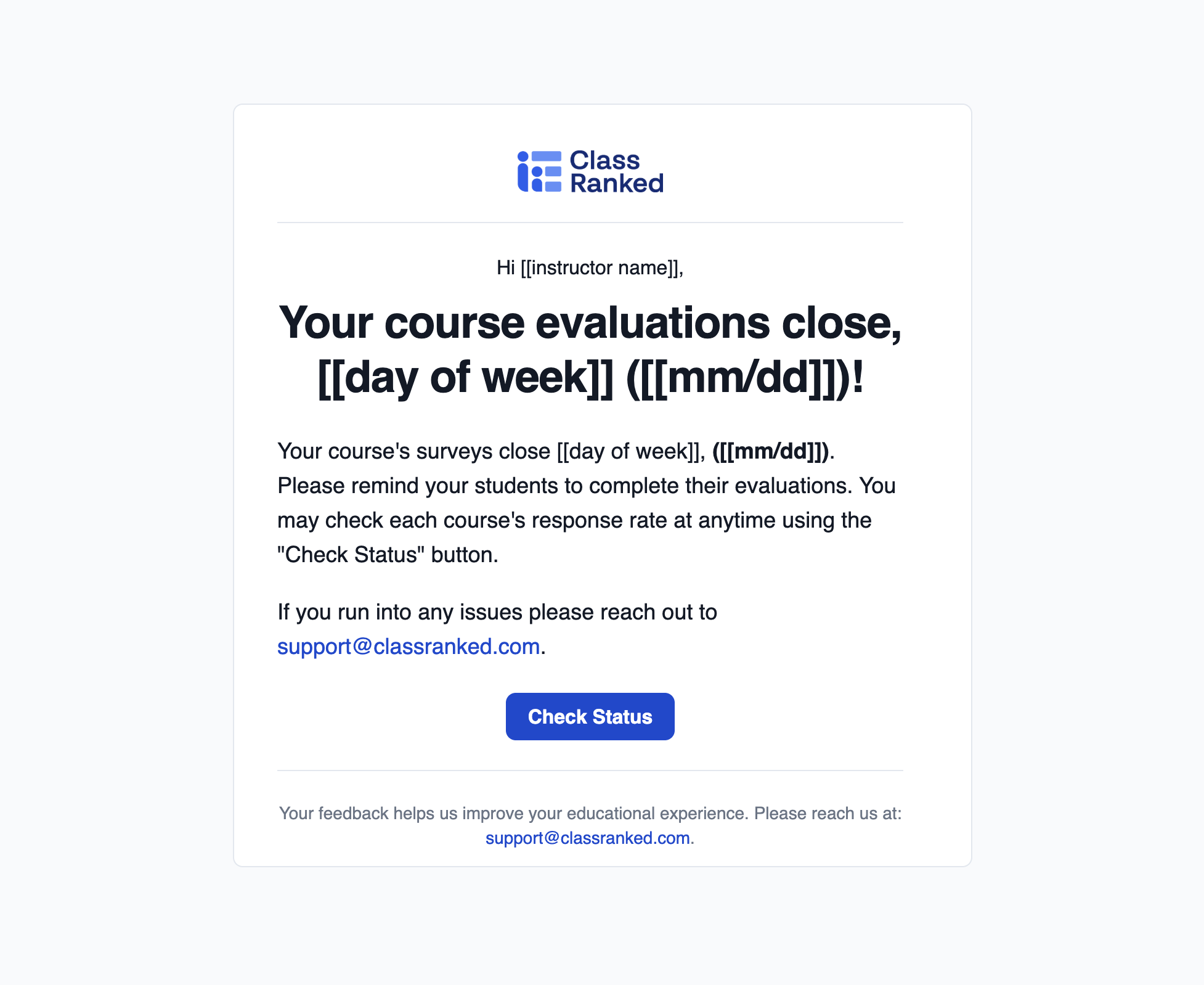
Instructor - Survey Closing
Purpose: Reminds instructors when their survey window is about to close.
Automatic details included: Instructor's name, date surveys close.
Instructor - Results Released
Purpose: Lets instructors know when results are ready.
Automatic details included: Instructor's name.

Admin - Survey Opening
Purpose: Notifies admins when student surveys are opening.
Automatic details included: Admin's name, date surveys open, school name.

Admin - Results Released
Purpose: Alerts admins when results are available.
Automatic details included: Admin's name.

To audit which emails actually went out, see the Email Delivery History page (Admin Settings → Emails) — added April 2026. See Article 72 for details.