
Managing Published and Live Surveys from the Admin Dashboard
Using the Admin Dashboard
The Admin Dashboard in ClassRanked is your go-to tool for monitoring, editing, and supporting course evaluations during a live term. It helps you view surveys, manage course sections, preview templates, and confirm student enrollments.
Key Features
Survey Cards

Each card on the dashboard represents a live or published survey your academic unit is involved in. You can:
- View the survey name and its start date
- Monitor response rates
- Add unit-specific questions (if enabled)
Term Selector
Use the dropdown to toggle between different terms. Helpful if two terms are running concurrently.
Survey Project View
Managing Course Sections
🗺️ If you click "View Sections" from a Survey Card in the Admin Dashboard, you will be taken to the Survey Project page. This page contains a list of all course sections (that you are responsible for) that are in this specific Survey Project.
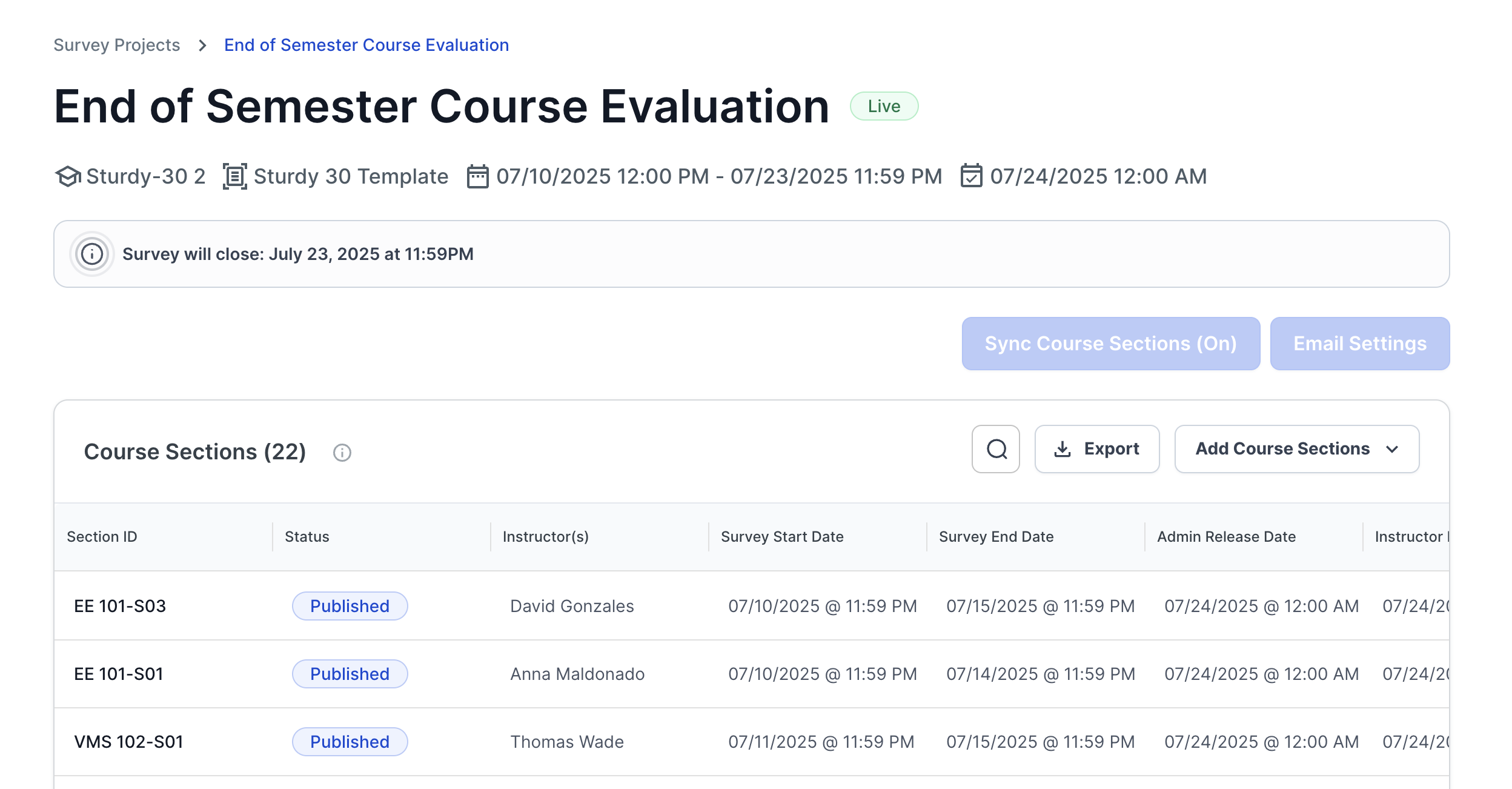
Things you can do on this page:
- See survey metadata (term, dates, template, release schedule)
- Modify start/end dates for individual course sections
- Remove or add course sections as needed
- Preview the survey students will see, including conditional logic (e.g., follow-ups based on answer, survey sections that display based on logic)
Survey Preview
🗺️ Once in the Survey Project page, you can preview your survey by clicking the 3 dots on the far right side of each Course Section

|

|
Preview surveys in two modes:
- Single Page View: Flat preview of all questions
- Student Experience: Simulates branching logic and what it looks like to students
Check Student Enrollment
🗺️ By double clicking on any row of the course sections table in the Survey Project page, you can see the survey details for that sections as well as a tab to check student enrollments.
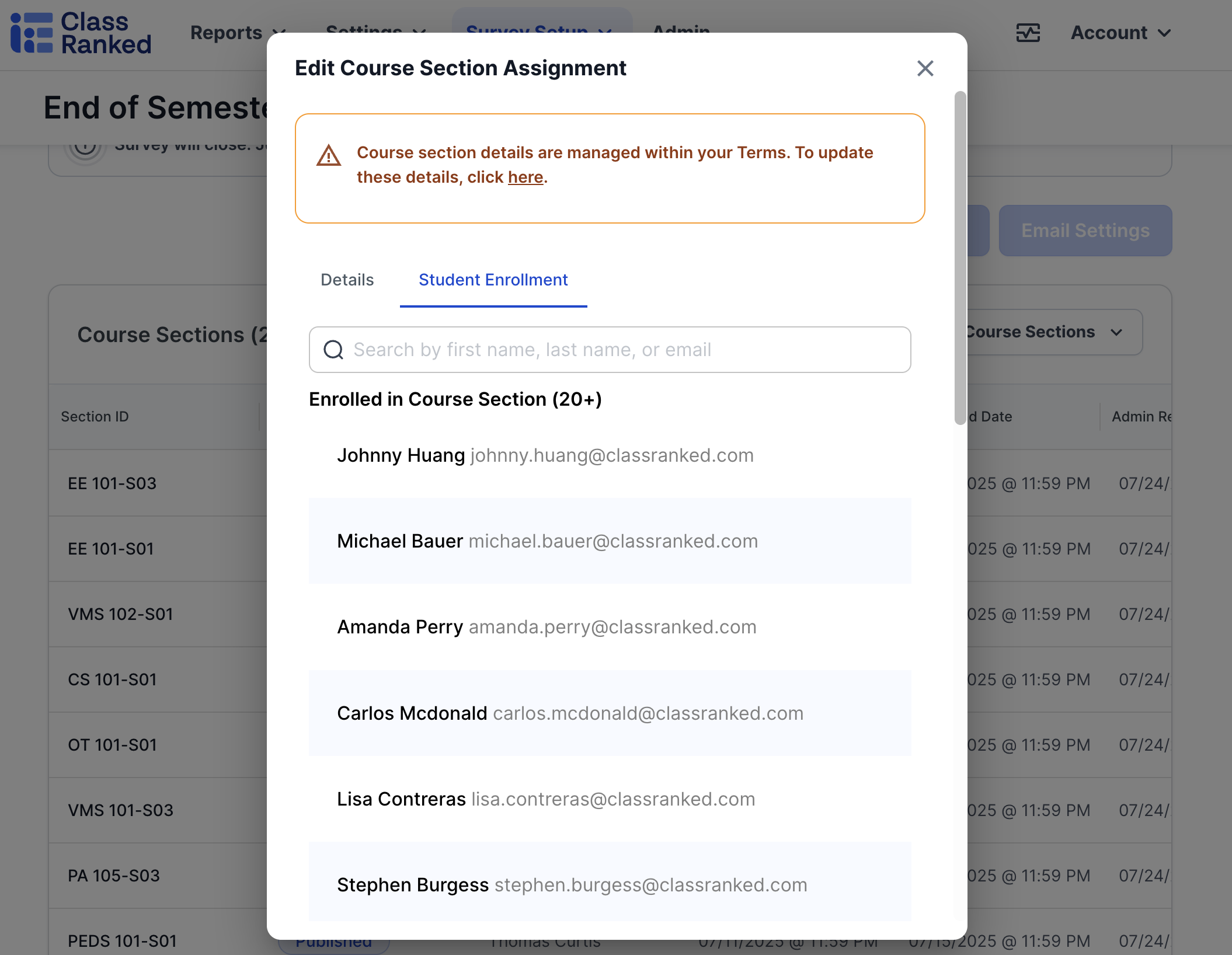
- Use the Student Enrollment tab in any course section to verify if a student is enrolled.
- You cannot add students from this page, but if a student is missing:
- You can add them via the term page (if you have permissions), or
- Contact your system admin or email support@classranked.com to request the addition.
Summary
From the dashboard and survey project view, you can:
- Extend survey dates
- Add or remove course sections
- Preview surveys
- Confirm student enrollment
Need help? Reach out to us anytime at support@classranked.com