
Opting Academic Units, Course Sections, or Instructors Out of a Survey
Administrators can remove an entire academic unit, a single course section, or an individual instructor from a survey before it goes live. Choose the option that matches what you need to remove:
- Option 1: Academic unit. Removes every course in a department, school, or program. Done from the academic unit card on the Home page. Only Viewers and Owners can see this option.
- Option 2: Course section or instructor. Removes one section, or one instructor within a section. Done from the Survey Project.
Log in to ClassRanked
Log in through Canvas, or go to the ClassRanked login page and sign in with your school email. You'll land on the Home page.
Option 1: Opt Out an Entire Academic Unit
This option only appears if academic unit opt-out is turned on for the survey.
- Go to the Home page. If you aren't there already, click the Home tab in the upper-left corner to see your academic units.
- Find the academic unit. Find the card for the unit you want to manage, such as a department or program. Check the Opt-out Deadline on the card. Changes must be made before that time.
-
Opt the unit out. Click the red Opt Out for All button in the bottom-right corner of the card.
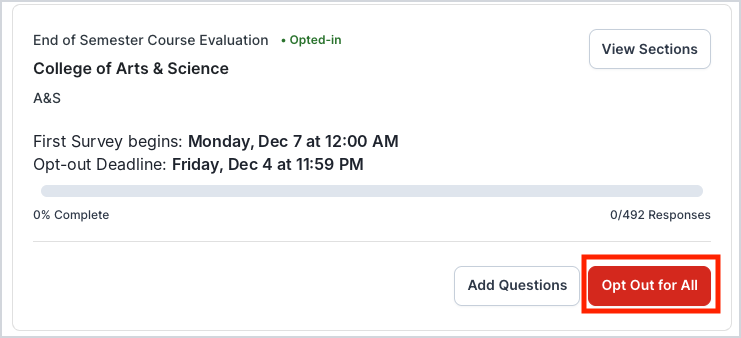
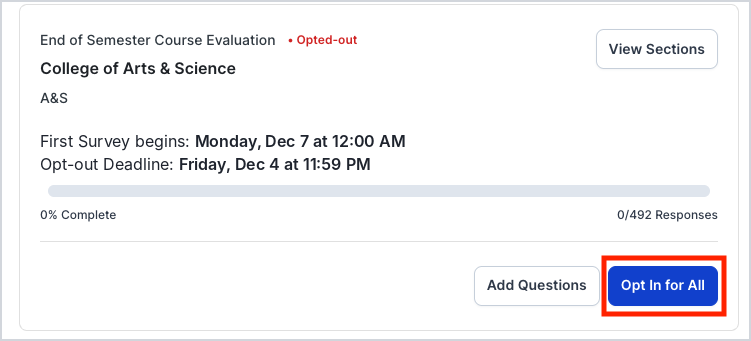
- Confirm. When prompted, click Confirm. The card's status changes from Opted-in to Opted-out.
-
(Optional) Opt the unit back in. To include the unit again, click the blue Opt In for All button that now appears in the same spot.
Option 2: Opt Out a Course Section or Individual Instructor (Viewer, Owner, Editor)
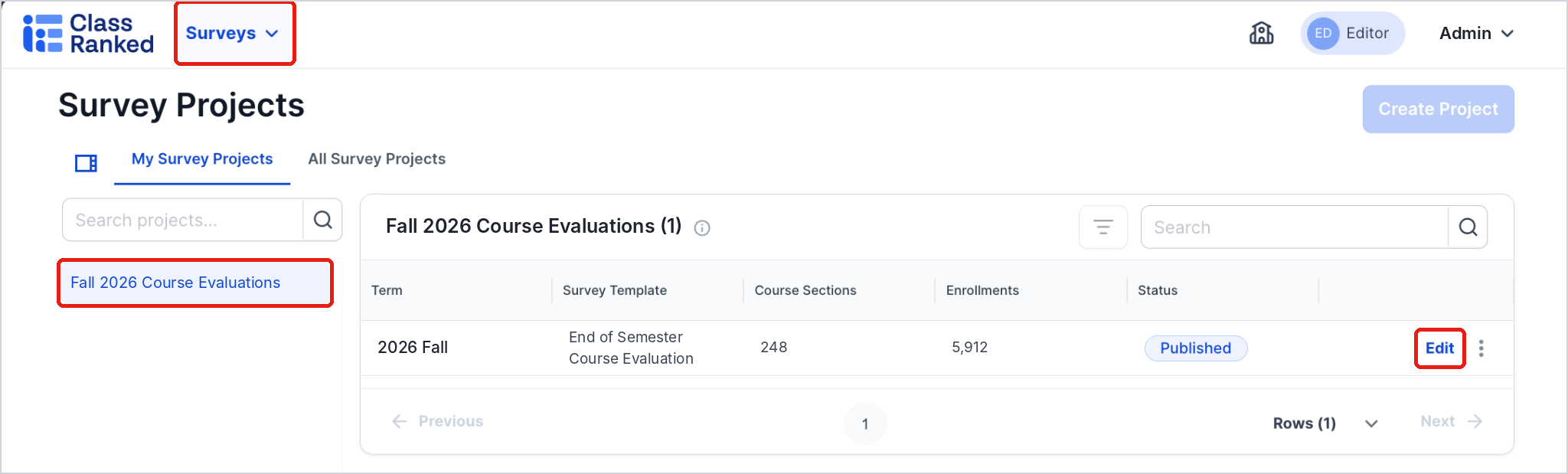
- Open Survey Projects. Click Surveys in the top navigation, then select Survey Projects.
-
Open the Survey Project. Select the Survey Project in the left sidebar, then click Edit on the right side of the table.
-
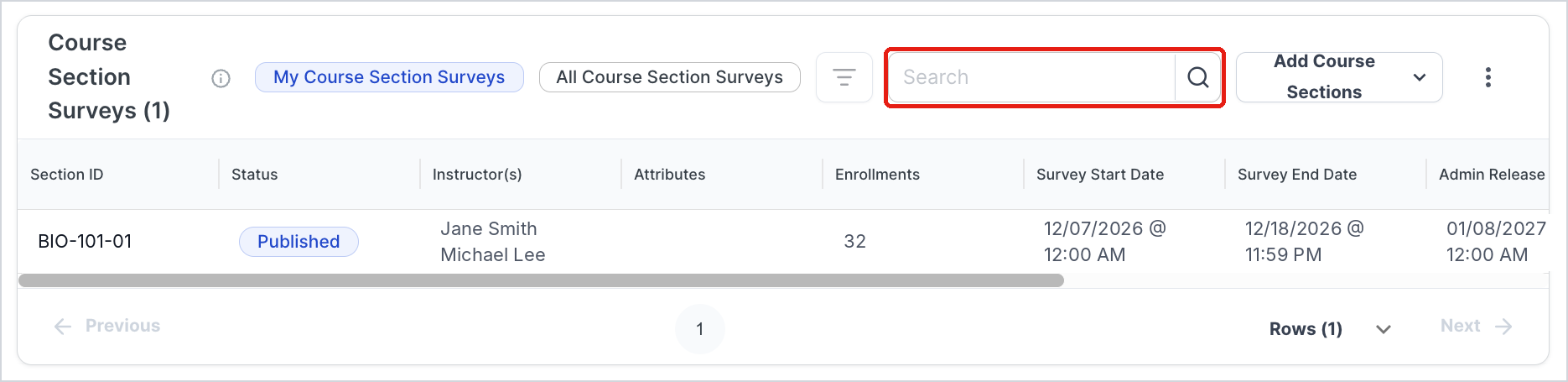
Find the course section. Use the Search box to search by instructor name or Section ID.
-
Open the actions menu. Scroll to the right end of the course section's row and click the three-dot menu (⋮).
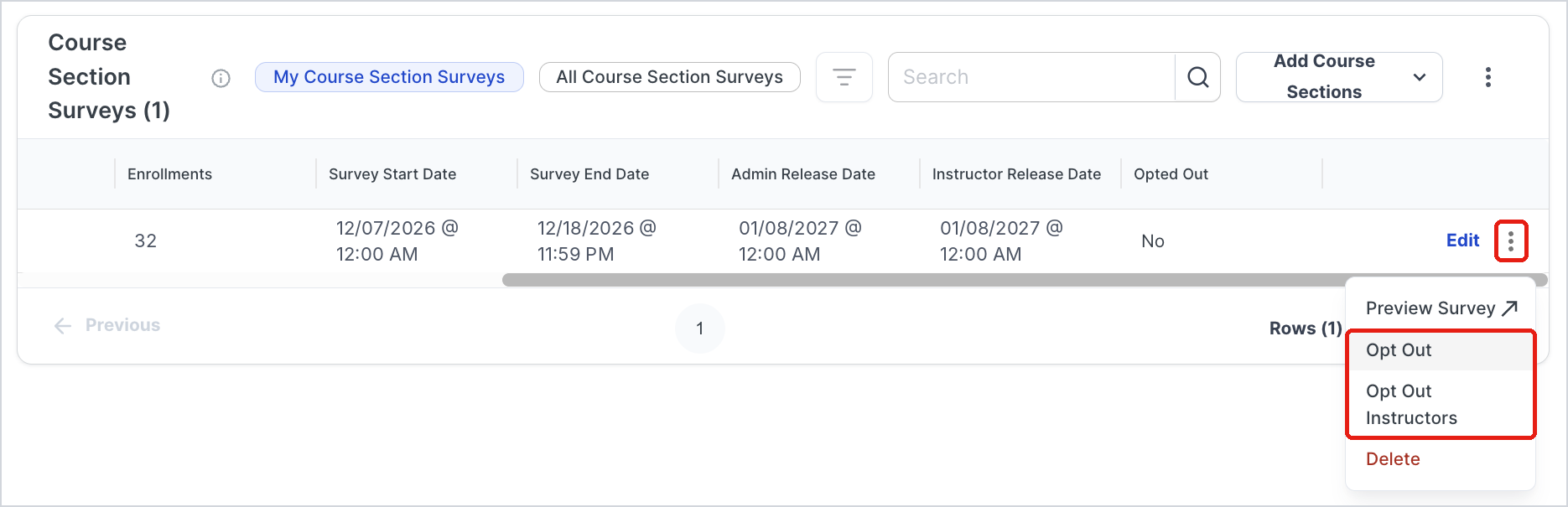
- Choose what to opt out.
- To opt out the whole course section, including all of its instructors: select Opt Out, then click Confirm.
-
To opt out one or more instructors only: select Opt Out Instructors. In the window that opens, turn on the toggle next to each instructor you want to remove, then click Confirm.
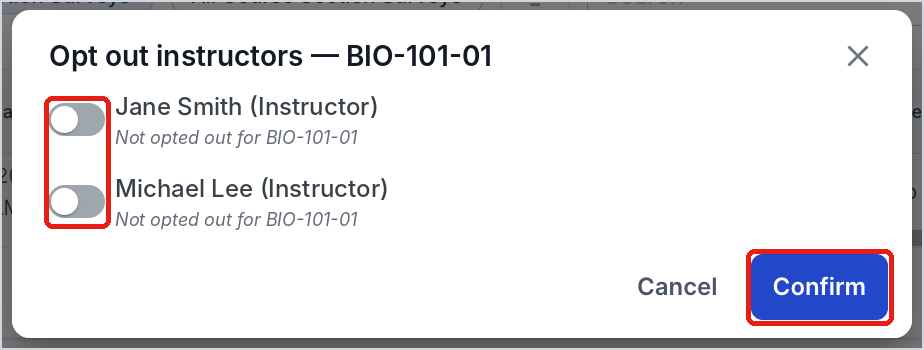
-
Check the confirmation. An Opt out successful message appears in the upper-right corner of the page.

Important Notes
- Academic unit opt-out only appears if the feature is turned on for the survey.
- Opting out an academic unit removes every course in that unit from the survey.
- Opt-out and opt-in changes must be made before the Opt-out Deadline shown on the academic unit card. After the survey goes live, academic units can no longer be opted out or back in.
Need Help?
Contact ClassRanked Support at support@classranked.com.